React Native Swipe Button Example
Hi Guys,
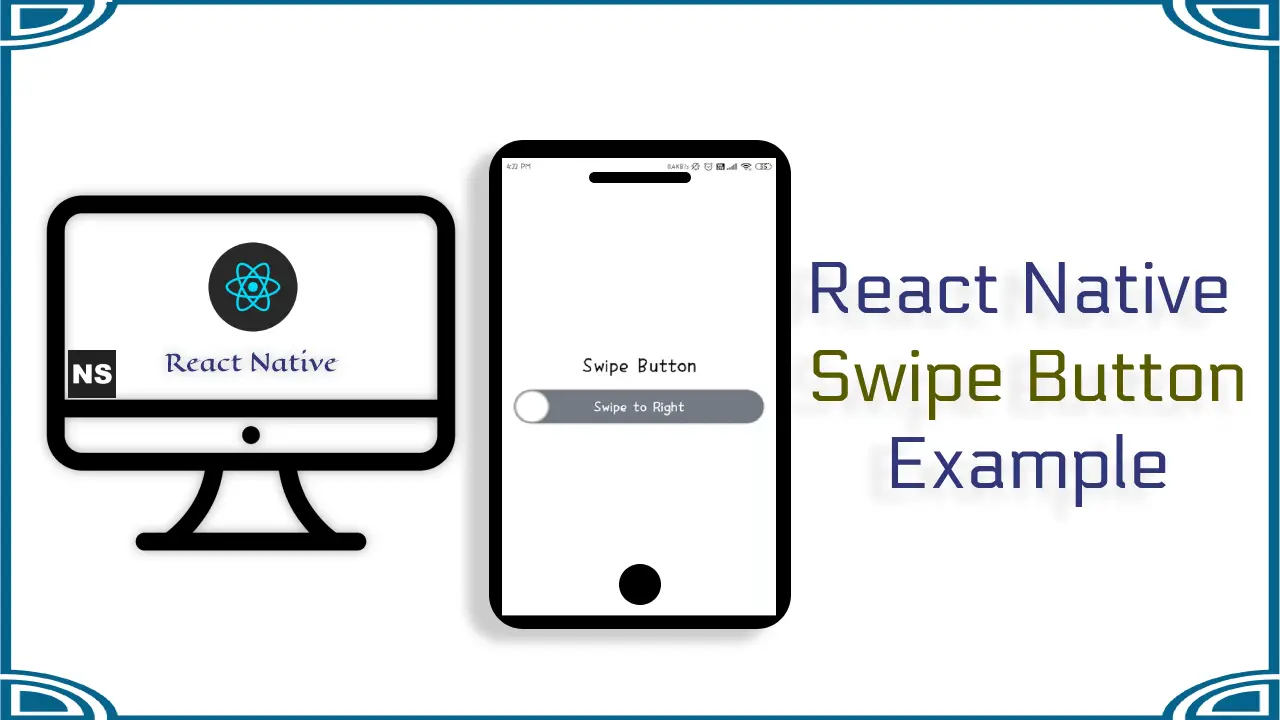
In this tutorial, I will learn you how to implement swipe button in your app using react native.
Here, i will give you complete example for add swipe button in your application using rn-swipe-button package in react native as bellow.
Step 1 - Create project
In the first step Run the following command for create project.
expo init nicesnippetsApp Step 2 - Install Package
In the step,I will install rn-swipe-button.
yarn add rn-swipe-buttonStep 3 - App.js
In this step, You will open App.js file and put the code.
import React from 'react';
import { SafeAreaView, View, Text, StyleSheet } from 'react-native';
import SwipeButton from 'rn-swipe-button';
const nicesnippetsApp = () => {
  return (
    <SafeAreaView style={styles.container}>
      <View style={styles.container}>
        <Text style={styles.title}>
          Swipe Button
        </Text>
        <SwipeButton
          disabled={false}
          swipeSuccessThreshold={70}
          height={45}
          width={330}
          title="Swipe to Right"
          titleColor="white"
          shouldResetAfterSuccess="true"
          onSwipeSuccess={() => {
            alert('Swiped Successfully!');
          }}
          railFillBackgroundColor="#c1c1c1"
          railFillBorderColor="#c1c1c1"
          thumbIconBackgroundColor="#ffffff"
          thumbIconBorderColor="#c1c1c1"
          railBackgroundColor="#767888"
          railBorderColor="#c1c1c1"
        />
      </View>
    </SafeAreaView>
  );
};
export default nicesnippetsApp;
const styles = StyleSheet.create({
  container: {
    flex: 1,
    backgroundColor: 'white',
    padding: 10,
    alignItems: 'center',
    justifyContent: 'center',
  },
  title: {
    fontSize: 28,
    fontWeight: 'bold',
    textAlign: 'center',
    padding: 10,
  },
});
Step 4 - Run project
In the last step run your project using bellow command.
npm startOutput
It will help you...
- React Native Pressable Example
- React Native Material Appbar With Content Component Example
- React Native Refresh Control Tutorial Example
- React Native Material Appbar Example
- React Native Range Slider Example
- React Native Toast Notification Example
- React Native Material Icon List Example
- React Native Layout Props Tutorial